Get answers to the most commonly asked questions about the legacy Editor deprecation.
Before you get started
As of October 5, 2026, the legacy Editor is fully deprecated and can no longer be accessed. To edit a Webflow site, team members need to sign in to Webflow with an account that has a seat on the site's Workspace.
The legacy Editor has been retired and is no longer available. Existing legacy Editor users received free transition options, including free client seats and limited seats. With this change, you can move beyond the legacy Editor's one-size-fits-all approach and tailor access using seats, roles, and permissions. This unlocks a more flexible and powerful way for teams and clients to collaborate safely, with clear guardrails that match each user's role and responsibilities.
Check out our blog announcement for detailed info on the deprecation and an expanded timeline.
| Date |
Milestone |
| Feb 2, 2026 |
Client seats became available for Workspace plans for freelancers and agencies |
| May 4, 2026 |
Automatic migration began, where Webflow gave existing legacy Editor users access to a free client seat or limited seat, depending on their Workspace plan |
| Aug 4, 2026 |
The legacy Editor is no longer available |
| Oct 5, 2026 |
The legacy Editor is fully deprecated; editing via ?edit is disabled |
Regain access if you're locked out
If you can't regain access to your Workspace or site, including stuck invite or login states like a "You've been logged out" loop, use the Account Recovery Helper to request help.
Seats and roles overview
What are seats?
In order to access a Workspace, each individual must be assigned a seat. The seat acts as a key to the Workspace and/or site. There are different types of seats and each serves a unique purpose.
For full details about Webflow seats, review our seats guide.
What are roles?
Roles determine what the member can and can't do in both the Workspace and the sites they have access to. The seat type determines which roles can be assigned to the member. For Workspace seats (e.g., limited seats), each member that fills a seat is assigned a Workspace role and automatically assigned the equivalent Site role for sites they have access to. If the Workspace allows site-specific access or the member is filling a client seat, members can be assigned a Site role at the site level. The same member can be assigned a different Site role on different sites.
-
Workspace role — applied at the Workspace level and defines what a member can do in the Workspace and in all sites they have access to
-
Site role — applied at the site level and impacts what that member can do within that site
Review our Workspace role guide or Site role guide for more information.
What's the difference between limited seats and client seats?
Client seats and limited seats both empower collaborators to contribute to a site without full design access. However, they differ in a few key ways:
- Client seats are site-specific, while limited seats apply to the entire Workspace
- Client seats are exclusive to Workspace plans for freelancers and agencies
- Client seats are included for free as part of Workspace plans for freelancers and agencies — additional client seats cannot be purchased at this time. Limited seats are available for all Workspace plans and additional limited seats may be purchased.
- Clients can be assigned the Marketer, Content editor, or Reviewer roles, while limited seats can only be assigned the Marketer or Content editor roles. To assign a limited seat the Reviewer role, the seat must be downgraded to a free seat.
What permissions do each applicable role include?
For a full breakdown of permissions per role, review our Workspace role guide or Site role guide. For the roles available to limited seats and client seats, here's an overview of how they differ:
| Permissions |
Marketer |
Content editor |
Reviewer |
| Access to page building
|
✅ |
❌ |
❌ |
| Access to content editing
|
❌ |
✅ |
❌ |
| Create and edit pages using components |
✅ |
❌ |
❌ |
| Add existing components to page slots |
✅ |
❌ |
❌ |
| Edit component property values |
✅ |
✅ |
❌ |
| Create, update, delete, and publish Collection items |
✅ |
✅ |
❌ |
| Modify page settings (i.e., set page password protection, edit SEO title and meta description, etc.) |
✅ |
✅ |
❌ |
| Create page branches
|
✅ |
✅ |
❌ |
| Edit page branches
|
✅ |
✅ |
❌ |
| Publish changes to the live site |
✅ (if "Can publish" is on) |
✅ (if "Can publish" is on) |
❌ |
| View the Site Activity log |
✅ |
✅ |
❌ |
| View and download form submissions in Site settings |
✅ |
✅ |
❌ |
| Use components and variables from shared Libraries |
✅ (if already used on the site) |
❌ |
❌ |
| Request reviews |
✅ |
✅ |
❌ |
| Approve reviews |
❌ |
❌ |
✅ |
| Create, view, and resolve comments |
✅ |
✅ |
✅ |
| Preview sites |
✅ |
✅ |
✅ |
| Create and modify Optimize experiences |
✅ |
❌ |
❌ |
| Create and modify Optimize events, audiences, and goals |
✅ |
❌ |
❌ |
| Create and modify Optimize variations |
✅ |
✅ |
❌ |
| Enable and disable Optimize variations/experiences |
✅ |
✅ |
❌ |
| View results of an active or past Optimize experience |
✅ |
✅ |
✅ |
| View analytics report data |
✅ |
✅ |
✅ |
| View and process orders on our native ecommerce product |
✅ |
✅ |
❌ |
Automatic migration details
Good to know
The automatic migration has completed. If you have not yet created a Webflow account to sign in and edit your site, you'll need to create an account manually and work with your site's owner/admin to gain access to the site.
When was the automatic migration?
The migration began on May 4, 2026, and users were migrated over the course of two weeks. The migration is now complete and the window is closed. The eligibility details below applied only to that migration and don't apply to access issues today. If you're locked out, see "Regain access if you're locked out."
What role was assigned to migrated users?
Legacy Editor users who were migrated by Webflow to fill a limited seat or client seat were assigned the Content editor role. This role is most similar to the permissions they had as legacy Editor users.
Workspace owners and admins can change migrated users' roles after they've accepted the invite.
As a Workspace owner or admin, did I have to do anything for the migration?
No. As long as the legacy Editor user was eligible, they were automatically migrated without any action needed from the Workspace owner or admin.
Who was eligible to be migrated?
Existing legacy Editor users who did not already occupy a Workspace seat (based on their email address) or client seat on May 4, 2026 were migrated.
Scenarios not eligible for migration:
- The user had been invited to the legacy Editor but did not create an account before May 4, 2026
- The user's email address was already filling a Workspace seat (any Workspace seat)
- The user was proactively migrated to a client seat ahead of the automated migration
Seat assignments in Workspaces for freelancers and agencies:
- Legacy Editor users were assigned one client seat for each site they had access to
Seat assignments in Workspaces for in-house teams:
- Each legacy Editor user on a Workspace for in-house teams was assigned one limited seat
- For Core Workspaces, the limited seat has access to all sites in the Workspace
- For Growth Workspaces, owners and admins can assign which sites the user has access
How long will the seats I received as part of the migration remain free?
There’s no end date currently planned, and we’ll provide an update if that changes.
Compare the editing capabilities of legacy Editor and the Content editor role
| Capabilities |
Legacy Editor |
Content editor |
| Edit static page content like text, links, and assets |
✅ |
✅ |
| Edit dynamic content directly on canvas |
❌ |
✅ |
| Edit dynamic content in CMS |
✅ |
✅ |
| Create new CMS Collection pages from the Designer |
❌ |
✅ |
| Add content prior to publishing the site |
❌ |
✅ |
| Upload and organize assets |
❌ |
✅ |
| Manage alt text on images |
❌ |
✅ |
| Ability to publish to staging and production |
❌ |
✅ |
| Access to commenting |
❌ |
✅ |
| See which pages your teammates are working on |
❌ |
✅ |
| Intuitive on canvas < > CMS navigation |
❌ |
✅ |
| Edit global content inside of components |
✅ |
✅ |
| Add a shortcut to the end of a live site URL for quick edit access |
✅ ?edit
|
✅ ?update
|
| Edit content inside interactive elements like dropdowns, tabs, and sliders |
❌ |
✅ |
| Single table to manage your entire team (and guests) |
❌ |
✅ |
| Access to editing localized content (Localize) |
❌ |
✅ |
| Site-specific access |
✅ |
✅ |
| Editor branding (whitelabeling) |
✅ |
❌ |
| Login via SSO* |
❌ |
✅ |
| Track content changes in Site Activity log* |
❌ |
✅ |
| Edit content on branched pages* |
❌ |
✅ |
| View, create, and modify Optimize variations |
❌ |
✅ |
| Enable and disable optimizations / variations |
❌ |
✅ |
| View results of an active or past optimization |
❌ |
✅ |
| View Analyze reporting |
❌ |
✅ |
Details for freelancers, agencies and their clients
How many client seats come with my plan?
Client seats are included at the site level. The number of client seats per site is determined by your Workspace plan:
| Workspace plan |
Seats per site |
| Starter (For freelancers and agencies) |
1 per paid site |
| Freelancer |
1 per site, staged or paid |
| Agency |
3 per site, staged or paid |
What if I had more legacy Editor users on a site than allotted client seats?
If you filled all of your client seats for a given site, new client seats were added to the site during the automatic migration for eligible legacy Editor users.
For example, an Agency Workspace plan allowed for three client seats and had three legacy Editor users from the CMS Site plan. If all client seats and all legacy Editor users were filled with unique email addresses, and none of the legacy Editor users were already filling a Workspace seat, that site had six occupied client seats after the migration.
How can a Starter Workspace plan be identified as a service provider?
When the Workspace owner created the Workspace, they filled out a survey. If they indicated they were a service provider, then the Workspace is flagged as a Workspace for freelancers and agencies.
If you want to identify your Workspace as a service provider, the Workspace owner can trigger the onboarding survey again, by visiting the following link and stating that they build for clients:
webflow.com/dashboard/welcome?s=1
Could I proactively migrate a legacy Editor user to a client seat ahead of May 4?
Yes. Client seats were available starting February 2, 2026, and you could assign clients to them ahead of the automatic migration. Users who filled a client seat ahead of the migration weren't included in the automatic migration.
Assign a client seat
To assign a client to a client seat:
- Go to Site settings > Site access > Clients
- Click Invite client
- Type in the client's email address
- Choose a site role
- Choose if the client can publish the site or if they should pay for the site plan (if your Workspace plan includes these options)
- Click Send invite
The user will receive an email invite. They must accept the invitation, at which point they'll be asked to sign in or create a Webflow account. Learn more about managing client seats.
Can I reassign the client seats from the automatic migration to a different client?
Yes, only if your Workspace is still within its client seat entitlement.
What if my client owns their Workspace?
If you build as a guest in your client’s Core or Growth Workspace, your client received a free limited seat for each existing legacy Editor user. Visit the Migration Hub to see what their migration looked like.
Can I (or my clients) still toggle between Design and Build (or even Edit)? And is there a way to quickly access the content editing experience from a live site?
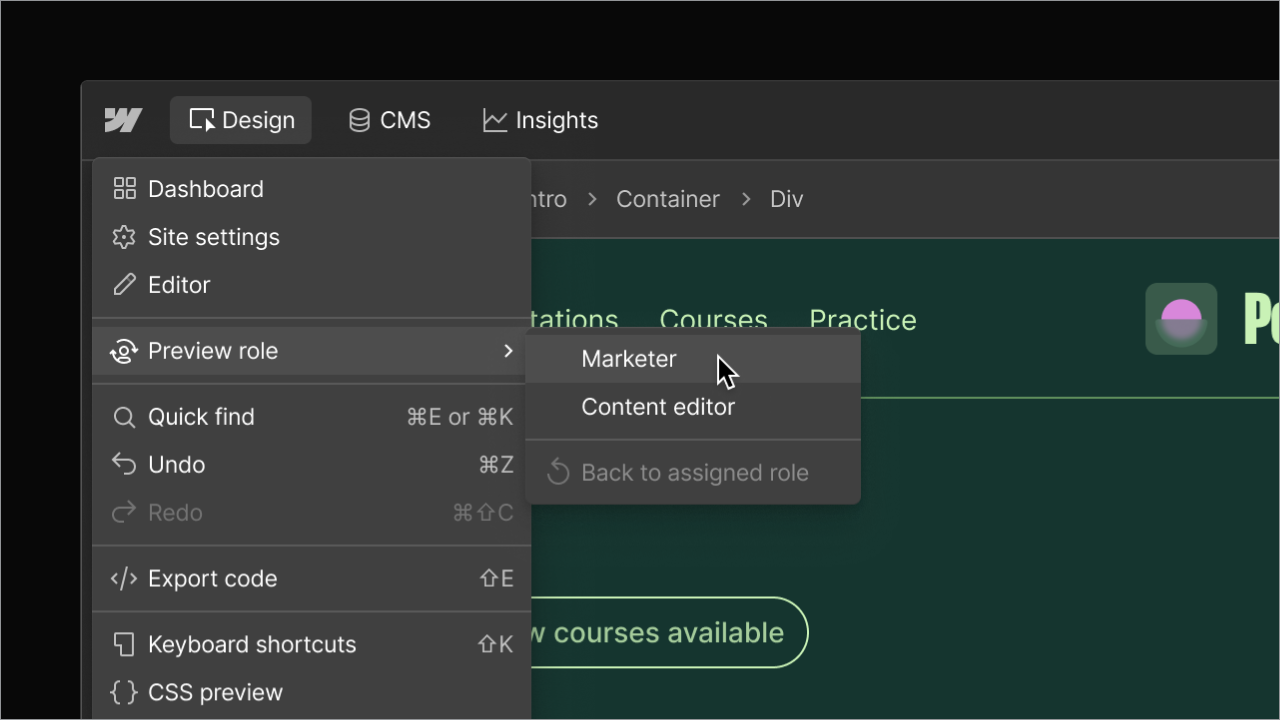
Yes. We’ve moved the ability to toggle between roles into the hamburger menu on the top left of the canvas (click on the Webflow logo) and under Preview role. If you’re a Designer or Admin in Webflow, you can quickly swap into the Marketer or Content editor role to either simulate what a teammate with those roles can see and do, or to work within the Marketer or Content editor role experience. Read more about this change here.
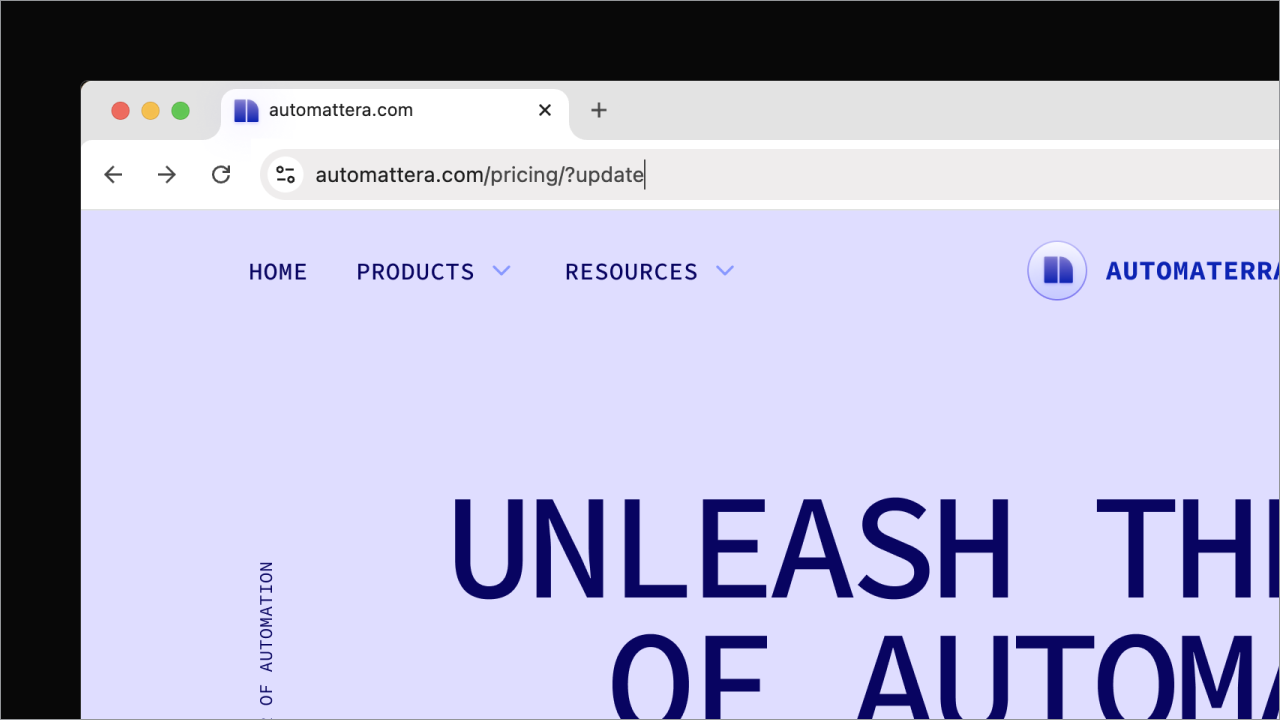
Plus, if you or your clients want to quickly access the content editing experience from any Webflow-hosted live site, just add the shortcut ?update to the end of the URL and you’ll be taken right to the Webflow canvas to edit that page. More on this here.
Details for in-house teams and their team members
Could I proactively migrate a legacy Editor user to a limited seat ahead of May 4?
No. Webflow migrated legacy Editor users to limited seats automatically, starting May 4, 2026.
Can migrated users access all sites in the Workspace?
Migrated users occupy limited seats. For Starter and Core Workspace plans, this means that those members have access to all sites in the Workspace.
Growth Workspace plans can assign site-specific access per member so they don’t have access to all sites within a Workspace.
Can I reassign the limited seats from the automatic migration to a different team member?
Yes, you can reassign your migrated limited seat to another team member.
Can I assign my team member with a migrated limited seat access to the Reviewer role?
Yes, but keep in mind that assigning the Reviewer role to a user on a limited seat moves them to a free seat, making the limited seat available to assign to someone else.
Enterprise Workspaces
If your Workspace is on an Enterprise plan, you can assign a limited role to an open full seat at no extra cost. Before you purchase new seats, check your Workspace for open full seats you can reuse.
Learn more about legacy Editor deprecation for Enterprise Workspaces.
Additional FAQs
Which roles can edit form settings?
None of the available roles that can be assigned to a limited seat or client seat are able to edit form settings.
Only owners, admins, site managers, or designers can edit form settings. Marketers and content editors can only view and export form submissions.
Can I still edit my site using the ?edit shortcut?
No. As of October 5, 2026, the ?edit shortcut no longer works.
The ?update shortcut is a separate function that works with Webflow accounts. Add ?update to the end of your website's URL in the browser's address bar to edit whichever page you're viewing in Webflow. For members with the Marketer role, this shortcut opens Webflow with Marketer role permissions. For members with the Content editor role or above, this shortcut opens Webflow with Content editor role permissions.
Learn more about the ?update shortcut.
Can I simulate the Marketer or Content editor role?
Yes. Owners, Site managers, and Designers can simulate the Marketer or Content editor role, letting you view and edit your site as though you had that role's permissions. To view the site as another role:
- Click the Webflow logo above the Pages panel
- Click View as a Content Editor or View as a Marketer
Learn more about simulating other site roles.
What happened to Editor branding (whitelabeling)?
As part of the legacy Editor deprecation, Editor branding (whitelabeling), which was exclusive to the legacy Editor, was also deprecated.
Did legacy Editor users on a whitelabeled site receive announcement emails about the deprecation milestones?
No. Legacy Editor users on whitelabeled sites were excluded from announcement emails related to the deprecation milestones. Workspace owners and admins were responsible for communicating these changes directly to them.
Please note: these users still received the email invitation to access their free seat when the migration began.