Familiarize yourself with Webflow Optimize and learn how optimizations and variations work.
Just like with clothing, one size doesn't fit all when it comes to websites. What resonates with one visitor might fall flat with another. Optimize helps you experiment with and personalize your site so every visitor gets an experience that clicks with them. Instead of showing everyone the exact same webpage, you can show different versions to different people and measure the results to see which ideas perform best.
Optimize is designed to help you move fast, test often, and continuously improve your site's performance.
Overview
Whether you're tweaking a headline, redesigning a layout, or targeting specific audiences, Optimize helps you tailor your site experience to what works best. Driving engagement and boosting conversions starts with optimizations and variations — the foundation for testing and delivering personalized experiences to your visitors.
First, you'll build an optimization, which contains variations. The optimization determines how those variations get shown to visitors, whether through standard A/B testing, rules-based personalization, or an AI-powered option that uses machine learning to automatically serve the best-performing variation and adapt as visitor behavior shifts.
Within an optimization, a variation is an alternate version of the content you want to show, like a different headline or an updated layout. When you're ready, you set the optimization live and publish your site. Then you can review the results to see how your ideas are performing.
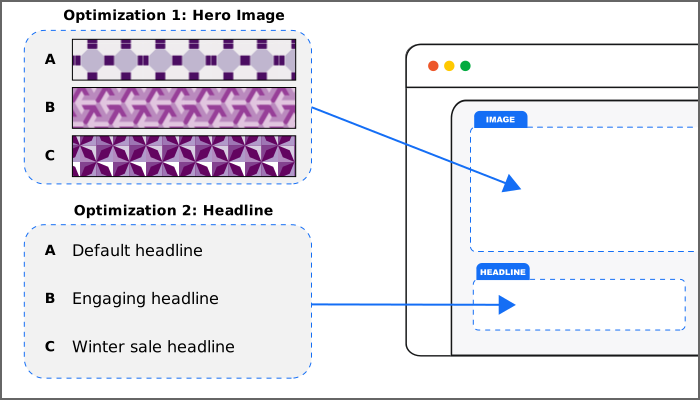
(Optimizations show alternate versions of page elements to visitors.)
What are goals?
Every website has an objective (e.g., driving more leads, downloads, purchases, etc.) and every webpage has an objective (e.g., get to the next page or next step in a flow, click a button, submit a form, etc.). In Optimize, these are goals.
Every optimization has a target goal that you use to measure success. Other goals can be used as tracking goals that let you review metrics, but not measure success. Review our goals overview page to learn more.
What are conversions?
A conversion is when a visitor completes the target goal action that your webpage or website is trying to accomplish. For example, if your target goal is for visitors to click a Subscribe button, then a conversion is counted when a visitor successfully clicks Subscribe. Optimize is designed to help you drive more conversions and engagement.
What are optimizations?
Optimizations are core building blocks to Optimize. They define:
-
Where — the specific page(s) on your site where you want to test or personalize content
-
What — the changes you want to make to a page, grouped into variations
-
Who — which visitors should see each variation — i.e., all visitors or a subset
An optimization is a container for one or more variations. For example, to test different homepage headlines, you'd configure one optimization to target that headline and create individual variations for each alternate headline within that optimization.
What kinds of optimizations are there?
There are two entry points to create an optimization, focused on whether you want to test out new ideas or personalize content for certain users. Both types of optimizations have the option to become "AI-optimized" — which leverages AI to learn quickly which ideas resonate with which visitors and then it shows the content that is most likely going to get a given visitor to make a conversion.
Run a traditional A/B/n test — Traditional test optimization
This optimization type randomly shows different versions of your content to a set percentage of your traffic. After enough traffic has seen the variations, a single winner is determined based on statistical significance. Use this when you want to validate a specific hypothesis with measurable outcomes.
Target specific audiences — Manual personalization optimization
Use rules-based personalization to define who should see which variation. For example, you might show different content based on referral source, location, or device type. These optimizations run indefinitely until you choose to stop them, and every visitor in the target segment consistently sees the same version of the page.
Use AI to maximize conversions — AI-optimized optimization
Leverage AI to automatically deliver the best-performing variation to each visitor. As user behavior shifts, the AI adapts in real time, learning which versions yield the most conversions. You can continue adding new variations to the optimization, and the AI will test and promote the most successful ones.
w
Pro tip
Not sure where to start? Check out the AI assistant — it recommends best practices and generates ideas you can launch as variations. Get up and running fast with proven ideas.
What are variations?
A variation is a single version of a change that you want to show visitors. This could be:
- A single change to a page element (e.g., swapping in a different headline)
- Multiple changes to a single element (e.g., new copy, font, and color for a CTA)
- A combination of changes to multiple elements (e.g., an alternate layout)
- A redirect to a different page entirely (e.g., visitor lands on page A but is sent to page B)
All variations live inside an optimization. You'll create an optimization first, then build variations to test your ideas.
Accessing settings and results
Above the canvas in the top bar, click the Insights tab to open the Insights panel. This is your primary entry point for Optimize, where you can adjust settings, create goals, manage optimizations, and review results. Below, we'll cover the available options.
Good to know
If you also have the Analyze add-on, its options also appear in the Insights panel.
Optimize overview
The Optimize overview page shows the overall impact your optimization efforts are having across your site. These metrics help you uncover insights into visitor engagement, identify companies visiting your site, and compare performance against common what-if scenarios using the ROI simulator. To view this page, an Enterprise plan and at least one site goal are required.
All optimizations
The All optimizations page lists all your optimizations with some basic info and lets you create new ones.
-
Details — Optimization name, target goal name, optimization type, and date updated
-
Status — shows the state an optimization is in (e.g., live, draft, off). Use the Status filter to hide or show optimizations.
-
Changes — shows a high-level description of what the optimization changes (e.g., button color). For multiple changes, hover over the change to see more info (i.e., what changed and where).
Click an optimization to access the optimization's results page, which includes detailed insights.
Goals
The Goals page lets you create "reusable goals" and site goals that can be added to any optimization.
You can also create goals while editing an optimization from the Optimizations dropdown, but these goals are "temporary goals" that can only be used in that specific optimization (unless you
Good to know
If you have the Analyze add-on, results for goals created on the Goals page appear in your Analyze reports.
Tracking
To use Optimize, you need to enable tracking and decide how you want to track visitor behavior (e.g., always track, opt out, or opt in). You can also choose which domains and/or subdomains to use Optimize on.
Audiences
An audience is a subset of your site visitors (e.g., visitors in New York). You can use audiences to refine who is eligible to see variations by targeting or excluding visitors. Learn how to create rules-based audiences.
Integrations
You can integrate with third-party services to enhance your Optimize experience. For example, you can integrate with HubSpot to track form submissions to drive engagement. Learn more about which services you can integrate with.
Using the Optimizations dropdown
While editing your site in Webflow, the Optimizations dropdown is available in the context bar above the canvas. This dropdown menu gives you quick access to Optimize and context-sensitive options.

- While viewing a base site, you can edit an existing optimization or create a new one for that page
- While editing an optimization, you can create or edit variations, switch between them, or adjust the optimization's settings (e.g., create goals, change the target goal, apply audiences)
Ask AI about your Optimize results
With the Webflow MCP server, you can ask a connected AI tool to list your optimizations and read their results without opening Optimize, such as which variation is winning. It can read this data but can’t change it.
Learn more about the Webflow MCP server.