Create, manage, and optimize Google Ads Performance Max campaigns directly inside Webflow.
How to install Google Ads for Webflow
Note
To install and use Google Ads for Webflow, you must be assigned the designer role. For more information about Webflow site roles and permissions, please review this Help Center article.
- Go to the Google Ads for Webflow details page
- Click Install App
- Choose the Webflow site(s) you want to connect
- Link an existing Google Ads account, or create a new one using the in-app prompts
- Click Connect App
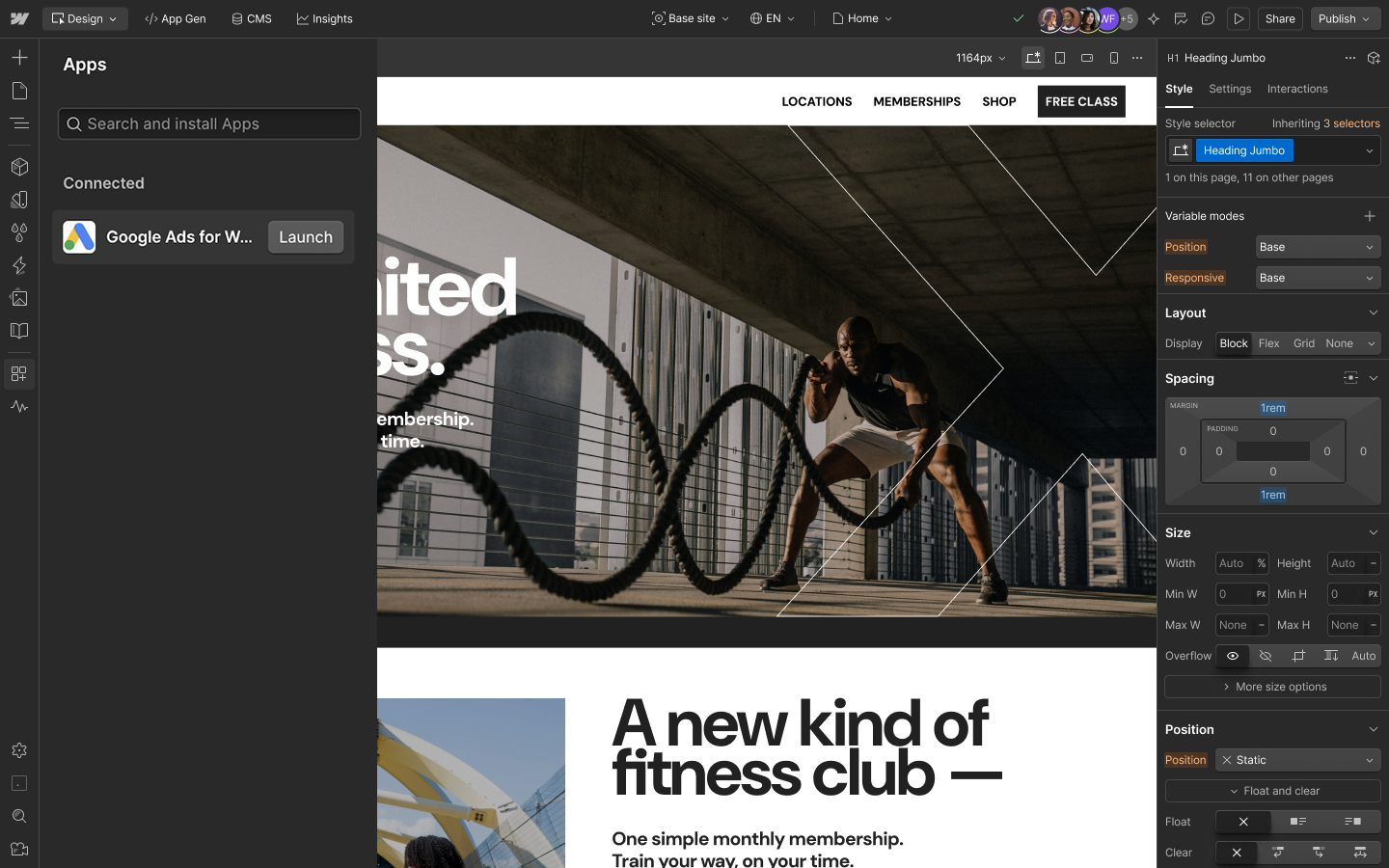
Once connected, Google Ads for Webflow will appear in your Webflow Apps panel, where you can launch it anytime to manage your ads.
Conversion tracking with the Google Tag (gtag)
After you successfully install Google Ads for Webflow and launch a Performance Max campaign, the Google Tag (gtag) is automatically added to your Webflow site to support conversion tracking.
Specifically, Google Ads for Webflow:
- Automatically connects your website forms or page views to Google Ads so every lead or page visit is recorded without you ever having to touch a line of code
- Supports enhanced conversions when they’re enabled in your Google Ads account which significantly improves the accuracy of your campaign measurement
- Captures deeper performance data by optionally tracking additional lead-generation signals giving Google AI more high-quality information to optimize your results.
Note
For reliable conversion tracking, ensure your site includes a clear confirmation (e.g. a “Thank you” page) or event that signals a completed conversion.
For more information about the Google Tag, review Google’s help documentation.
How to create and launch a Google Ads Performance Max campaign
When you launch Google Ads for Webflow:
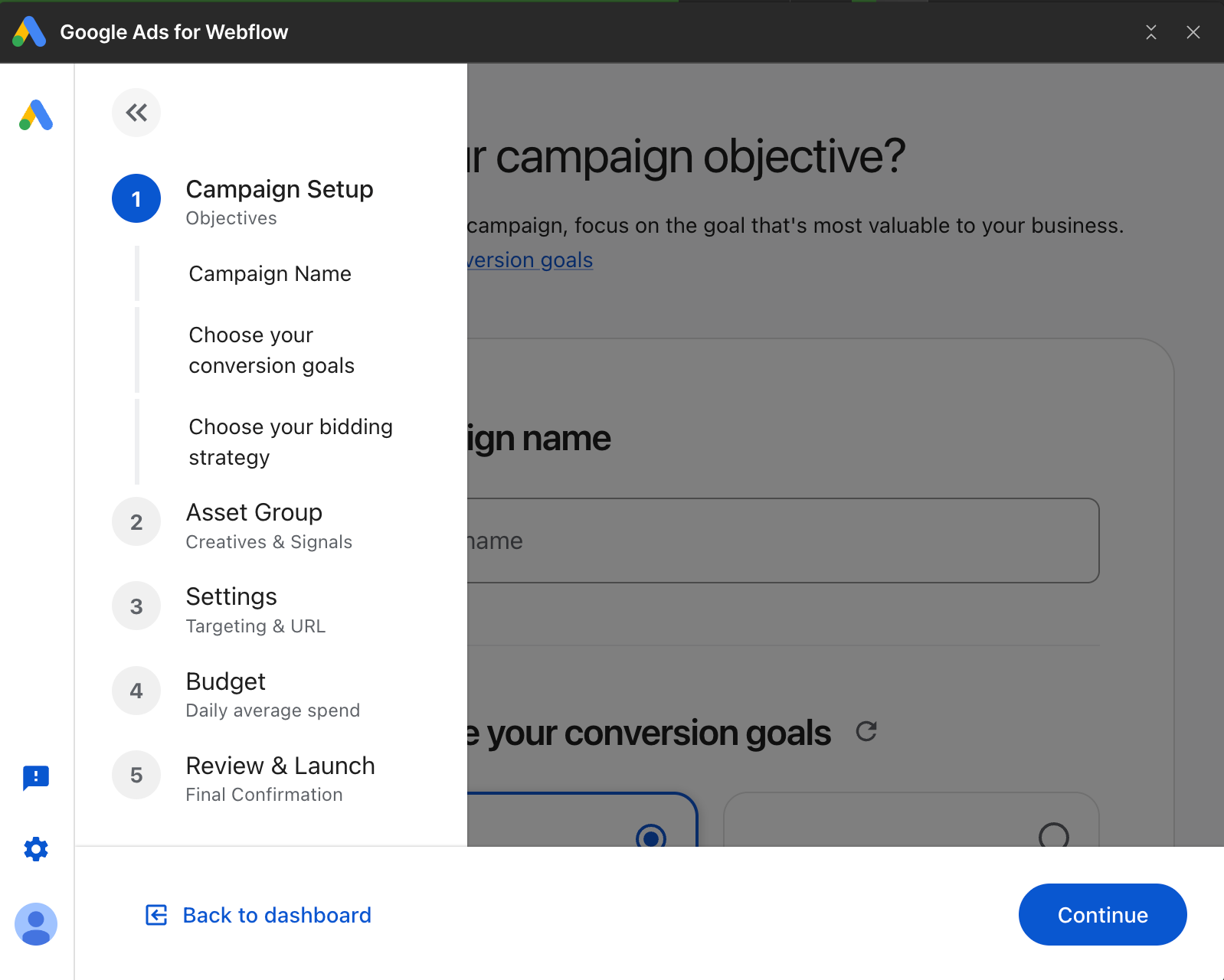
- Configure your campaign by setting the campaign name, conversion goal, bidding strategy, budget, targeting (locations and languages), URL settings, and asset group details including final URLs, headlines, descriptions, images,logos, videos, etc.
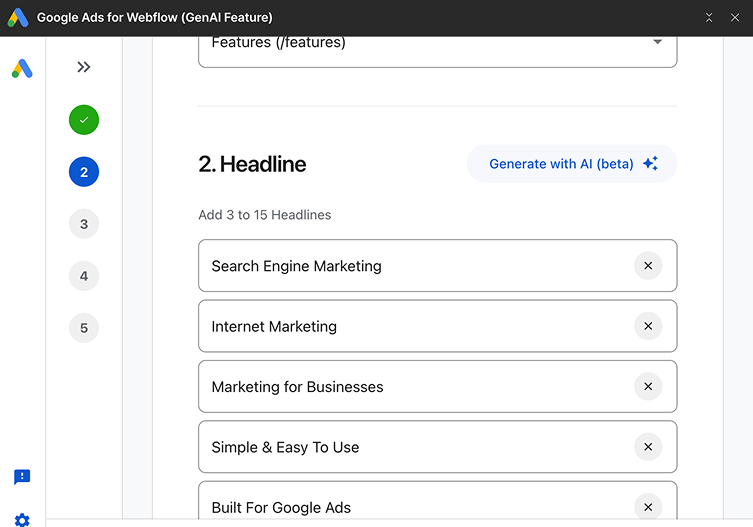
- Choose creative assets (headlines, descriptions, images) — you can pull images directly from your Webflow asset library or upload new ones, or generate contextually appropriate ad copy with the new Google Ads Gen AI asset creation feature (in beta). Note that the Google Ads for Webflow validates assets and shows policy warnings in real time.
- Preview the campaign before publishing to ensure everything looks correct
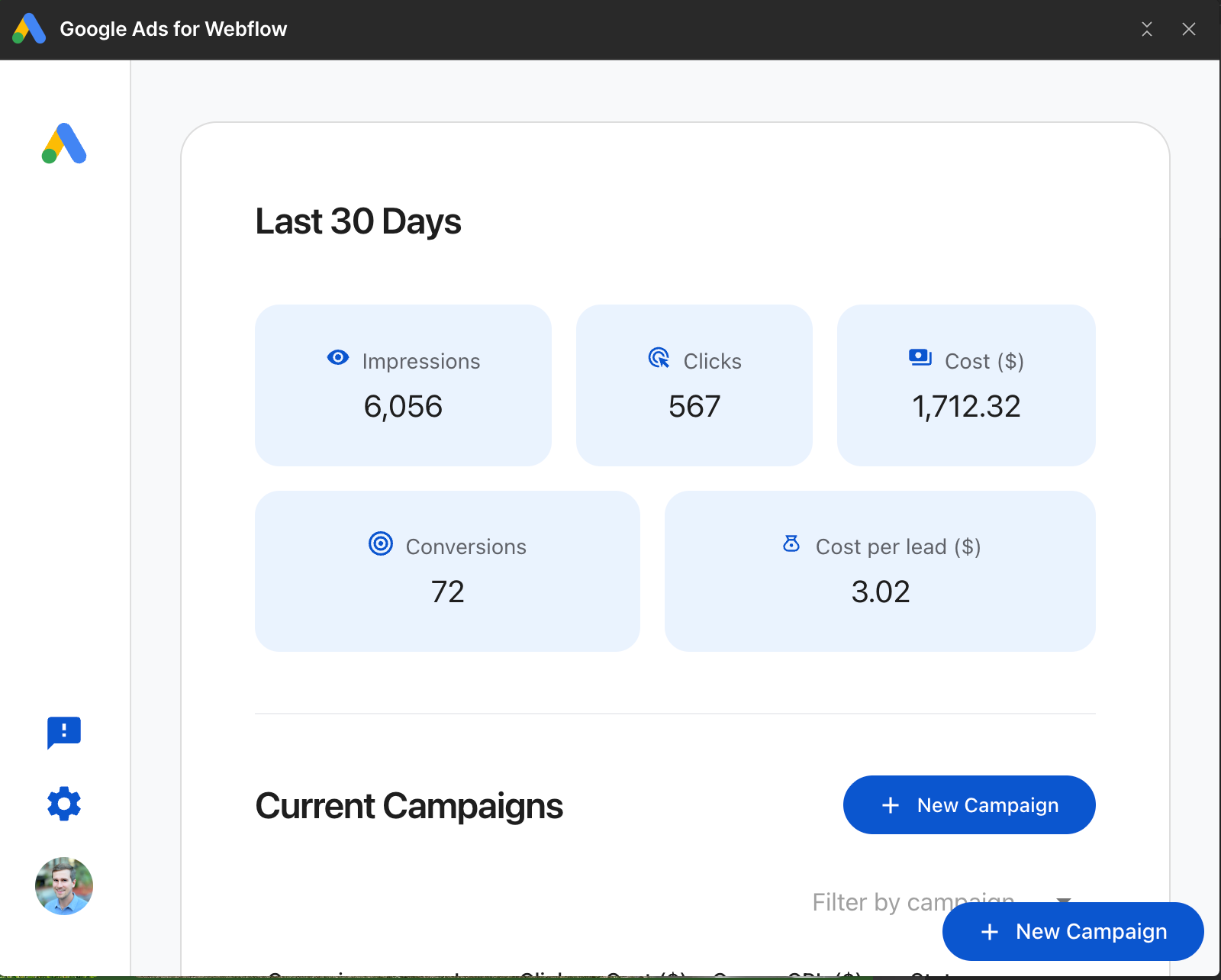
After publishing, the campaign will be available in the App’s dashboard. You can view performance metrics, adjust budgets, pause or resume campaigns, revise assets, and more without leaving Webflow.
To learn more about Google Ads Performance Max campaigns, visit Google's documentation and best practices.
Troubleshooting and tips
Note
To install and use Google Ads for Webflow, you must be assigned the designer role. For more information about Webflow site roles and permissions, please review this Help Center article.
-
Verify tag publication: After installation, always confirm that the Google Tag is properly published on your site. This is required for conversion tracking to work correctly.
-
Use a dedicated confirmation page: If your conversions rely on form submissions, redirect users to a dedicated Thank You page to ensure the most accurate tracking
-
Preview before publishing: Use the preview function before publishing any campaign to catch asset or policy issues early
-
Manage advanced adjustments in Google Ads: After configuring your campaign in Webflow, you can visit your Google Ads dashboard to modify the campaign type.
-
Manage advanced adjustments in Google Ads: After configuring your campaign in Webflow, you can a
- lways visit your Google Ads account and create other campaigns (i.e Demand Gen, Search).
-
Be cautious when uninstalling: Because Google Ads for Webflow inserts Google Tags and campaign configurations directly into your Webflow site, uninstalling Google Ads for Webflow may disrupt tracking or ad management. Review your site carefully before and after uninstalling.
To learn more about Google Ads Performance Max campaigns, visit Google's documentation and best practices.
If you already have a manually-installed Google Tag via custom code and then install the Google Ads App for Webflow, don’t worry –– you won’t have duplicate tags. Conversion events are attributed by their unique conversion action label, not by the tag itself, so there is no double-counting of conversions. The app includes the Webflow developer_ID for all conversion events it fires, so you can distinguish app-fired events from manually-added scripts.