Webflow interactions with GSAP let you create smooth, responsive interactions for your site. You can reuse animations and precisely control timing, sequencing, and responsiveness using a visual timeline.
Interactions
Interactions are sequences built with four key parts: triggers, targets, actions, and animations:
Trigger type — Click, hover, page load, etc.
Trigger target — the element (or elements) the trigger acts upon
Action — a reaction to a trigger
Action target — the element (or elements) that are affected by the action
Animation — a type of action where properties change over time.
When a site visitor interacts with your site, a trigger detects that event and starts an interaction. The interaction performs one or more actions, which affect one or more targets.
Some actions are simple –– like adding or removing classes or modifying an element’s styles or attributes –– and others involve visually complex, timed changes (i.e., animations).
As you build interactions in the Interactions panel, they appear on the timeline — a visual tool that sequences multiple actions and animations.
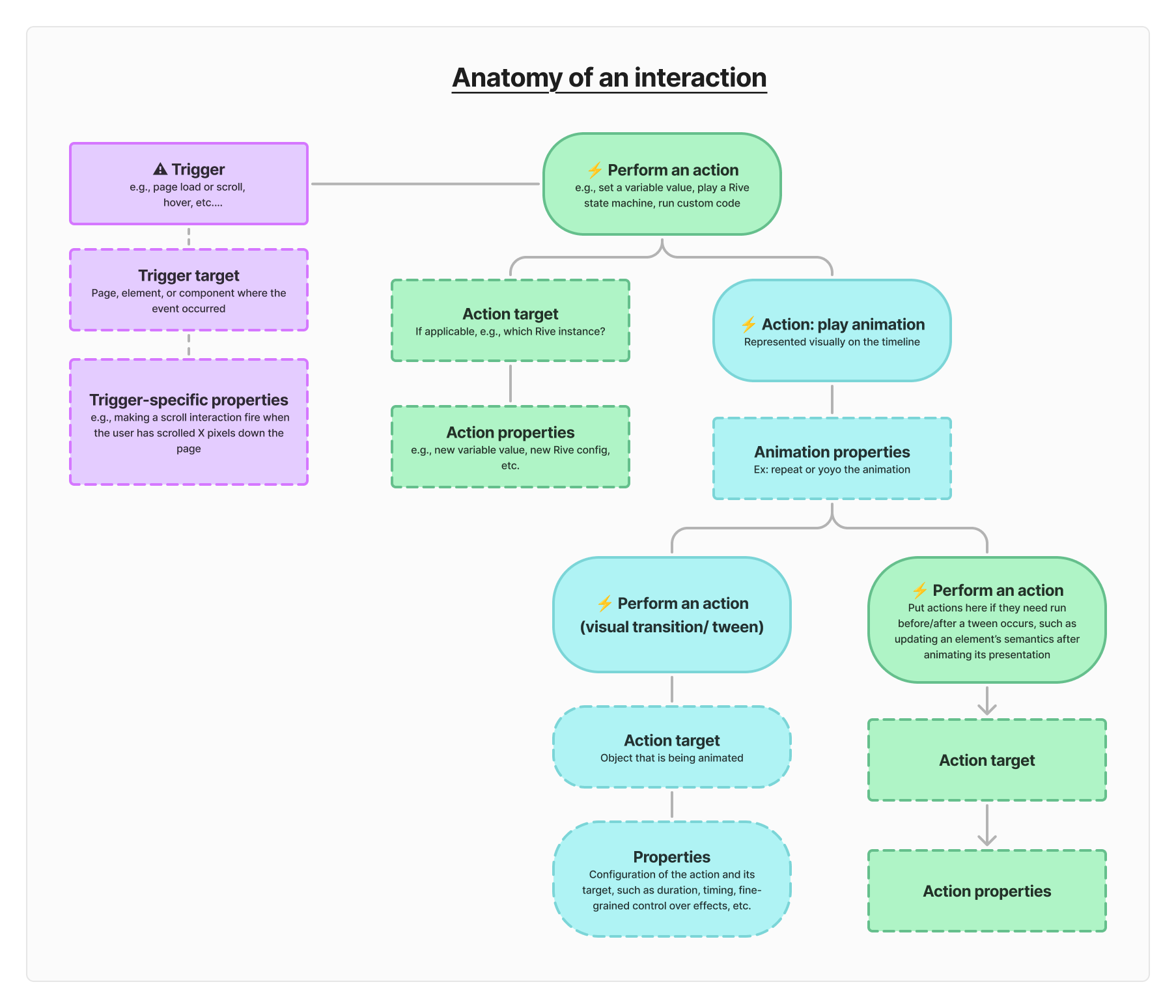
An interaction = a trigger + one or more actions (which may include animations)
You can name interactions by clicking on its name from the Interactions panel when you’re editing the interaction. All interactions are available from the left-hand Interactions manager panel. Note that this panel only includes interactions created using GSAP.
Triggers
Triggers detect user or system events that then start an action. You can use triggers like:
mouse clicks
mouse hover
custom events
You can adjust a trigger’s target(s), target scope, and other settings depending on the trigger you choose. Interactions can also have multiple triggers, for example you can set a trigger to fire on mouse enter (play the timeline) and then another trigger to fire on mouse leave (reverse the timeline)
Targets
In an interaction you have trigger targets and action targets. You can target by:
After setting your target, adjust the scope as needed.
Actions
Actions are reactions to a trigger and have targets that they’re acting upon. For instance, actions can include:
You can configure actions to run in sequence or in parallel. Some actions are instantaneous (like adding a class), while others are animated on a timeline.
Actions can also animate variables directly using the Animate Variable action type. Learn more about animating variables in Interactions with GSAP.
Presets
You can save actions as presets to reuse across your site, helping maintain visual consistency and brand identity. To save an action preset click the “Save as preset” bookmark icon next to the action’s name. Then, you can search for existing presets from the left-hand Interactions manager panel.
Animations
Animations are actions involving a visual transition/movement of the target element. They’re built with a timeline that contains one or more tweens. A tween changes a property (like opacity or position) over time.